How do online exams detect multiple screens?
Second-monitor detection combines operating system display checks, resolution checks and port polling during the exam. Here is how each piece works.
In short
Four techniques platforms use to spot a second display, and why most now require single-screen mode before the exam rather than flagging it afterwards.
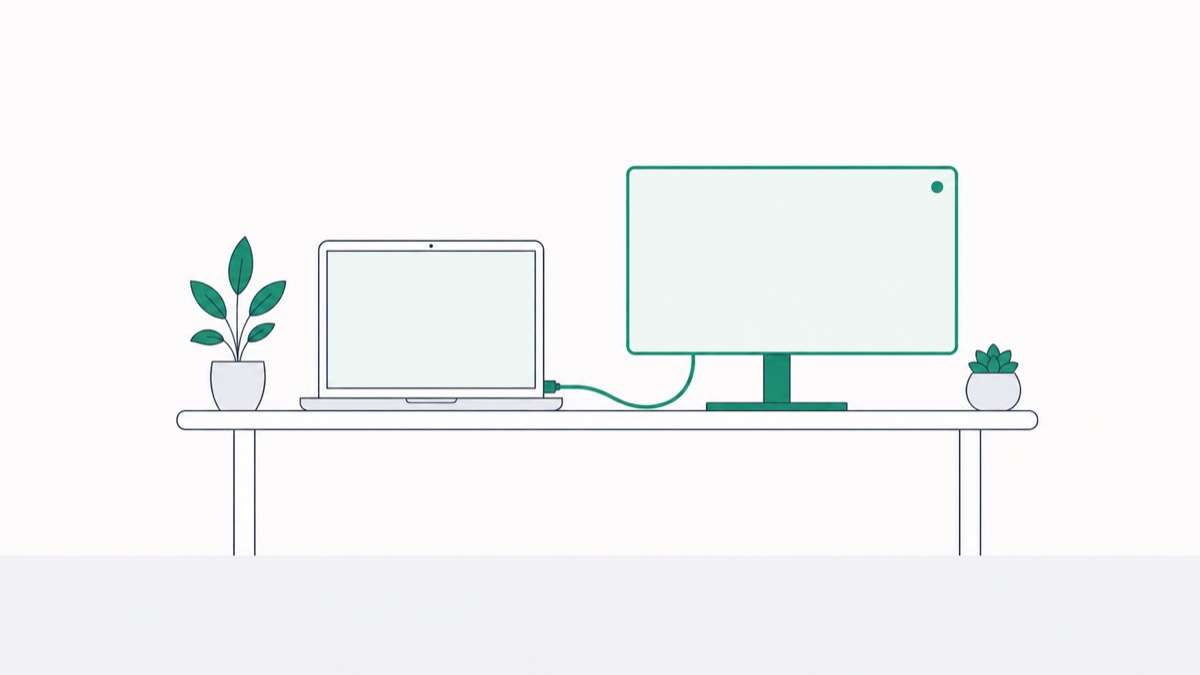
Online exams detect a second monitor by querying the operating system's own display list, the same information your computer uses to manage multiple screens, and checking it both before the exam starts and continuously throughout the session. If a second display shows up at any point, even one that isn't actively displaying anything related to the exam, most systems will flag it, warn the student, or block the exam from continuing.
This is one of the more specific technical questions people ask about proctoring, and the mechanism behind it is simpler than most people assume - it's not detecting what's on the second screen, just that one exists. For the broader context on how AI-based monitoring works overall, see our complete guide to online exam proctoring.
The Core Mechanism: Display Enumeration
Every operating system keeps a live list of connected displays so it knows how to manage your desktop. Windows exposes this through its display settings API; macOS does it through frameworks like IOKit and NSScreen. Proctoring software simply asks the operating system for that list.
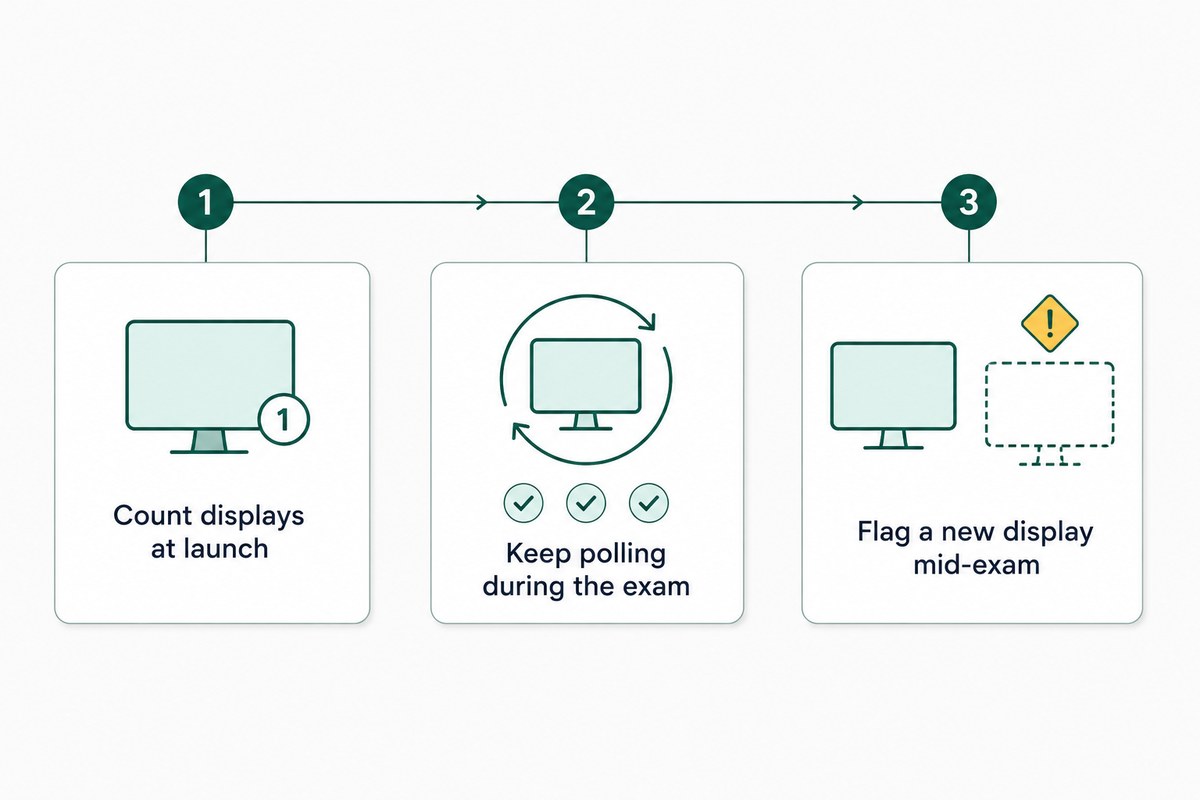
- At launch, the system checks how many displays are currently connected before allowing the exam to start
- Throughout the exam, most platforms continue polling that same display list, not just checking once at the beginning
- If a new display appears mid-exam - say, a student connects a second monitor partway through - the system detects the change in real time, not only at startup
This is why unplugging a monitor after starting the exam doesn't work as a workaround, and why plugging one in mid-exam gets detected just as reliably as having one connected from the start.
What Happens When a Second Screen Is Detected
The response varies by platform, and this matters if you're evaluating vendors or wondering what will happen to you as a student.
- Block - some systems won't let the exam start at all until the extra display is disconnected
- Warn - others allow the exam to proceed but log a warning and flag the session for review
- Flag for review - a detected second screen gets recorded as an incident, with a timestamp, for a human to check afterward rather than triggering an automatic penalty
None of these responses assume malicious intent by default in a well-designed system, a second monitor is common for entirely legitimate reasons (accessibility setups, note-taking apps, work-from-home habits), which is exactly why most platforms flag for review rather than treating detection itself as proof of cheating.
Beyond Display Count: How Screen Content Gets Checked Too
Detecting that a second screen exists is only half the picture. Many platforms go further by recording and reviewing what's actually on your primary screen throughout the exam.
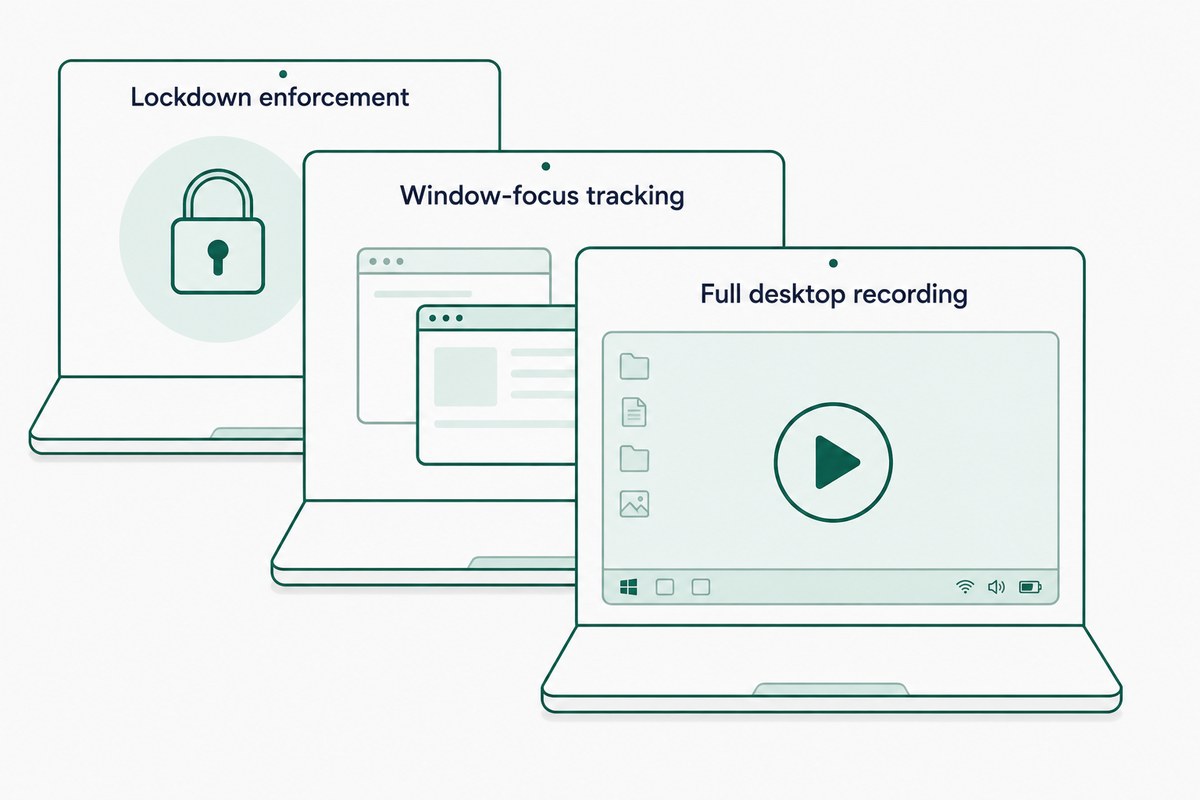
- Full desktop or screen recording - some platforms record your entire screen, not just the exam browser window, making any secondary activity visible to a reviewer even if it isn't happening on a second monitor
- Browser and window-focus tracking - attempts to move the exam window to a different display, or losing focus on the exam tab, get logged the same way a tab switch would
- Lockdown enforcement - secure browsers can restrict the exam to a single display and block window-dragging to a second screen entirely, rather than just detecting it after the fact
This connects closely to a related detection question, how systems catch someone switching away from the exam tab entirely, since both rely on the same underlying focus and display-monitoring layer.
Why This Rule Exists
The concern isn't really about having a second monitor for its own sake, it's about what a second, unmonitored display makes possible: notes open on one screen while the exam is visible on the other, a messaging app for real-time help, or search results sitting a glance away from the camera's view. A single-display requirement removes that specific opportunity without needing to guess at intent.
This is also why the rule tends to be strict rather than flexible, allowing exceptions on a case-by-case basis during a live exam isn't practical, so most institutions apply it uniformly and handle legitimate edge cases (like accessibility needs) through accommodation requests made before exam day, not during it.
What This Means If You Use Multiple Monitors Normally
If dual monitors are just part of your regular setup, the practical fix is straightforward: disconnect the secondary display before starting the exam, not just before you think the check happens. Because most systems poll continuously, doing this only at the start and reconnecting mid-exam won't go undetected.
TunnelQuiz's system check walks students through this explicitly before the exam window even opens, specifically because "I forgot I had a second monitor connected" is one of the most common, and easily avoidable, reasons a session gets flagged unnecessarily.
The Short Version
Online exams detect a second monitor by checking your operating system's own display list, both at launch and continuously throughout the session - it's detecting connection, not content. Responses vary by platform (block, warn, or flag for review), but the safest approach is always disconnecting any secondary display before the exam starts, not just before you think the check happens.
Frequently asked questions
Can proctoring software detect a second monitor that isn't turned on?
Yes, most detection methods check the operating system's list of connected displays, which includes a monitor that's plugged in but powered off or not actively in use. The check is based on connection, not on whether the screen is displaying anything.
Does connecting a second monitor mid-exam get detected?
In most modern systems, yes - display checks typically run continuously throughout the exam rather than only once at the start, so a monitor connected partway through gets detected in real time. This is different from older systems that only checked at launch.
Will I automatically fail if a second monitor is detected?
No, most platforms log the detection as a flag for human review rather than applying an automatic penalty, since legitimate reasons for having a second display exist. The exact response (block, warn, or flag) depends on the specific proctoring platform and the institution's policy.
Can I use a second monitor if I have an accessibility need?
Often, yes, but it typically needs to be arranged in advance through an accommodation request rather than assumed on exam day. Institutions generally can't evaluate exceptions in real time during a live exam, so this needs to be settled beforehand.
Does proctoring software see everything displayed on my other monitor?
It depends on the platform, some record only the exam browser window, while others record your entire primary screen, and detection of a second display doesn't necessarily mean its content is being viewed. The safest assumption is that a connected second screen will be detected, regardless of what's shown on it.